
Find it online
Select a word or sentence you’re curious about in the text you’re reading.
01 · CHROME EXTENSION
Lingoban helps you understand expressions, listen to them, and recall them later. Install the Chrome extension to analyze selected words or sentences directly on supported webpages.
Add to Chrome →
Select a word or sentence you’re curious about in the text you’re reading.
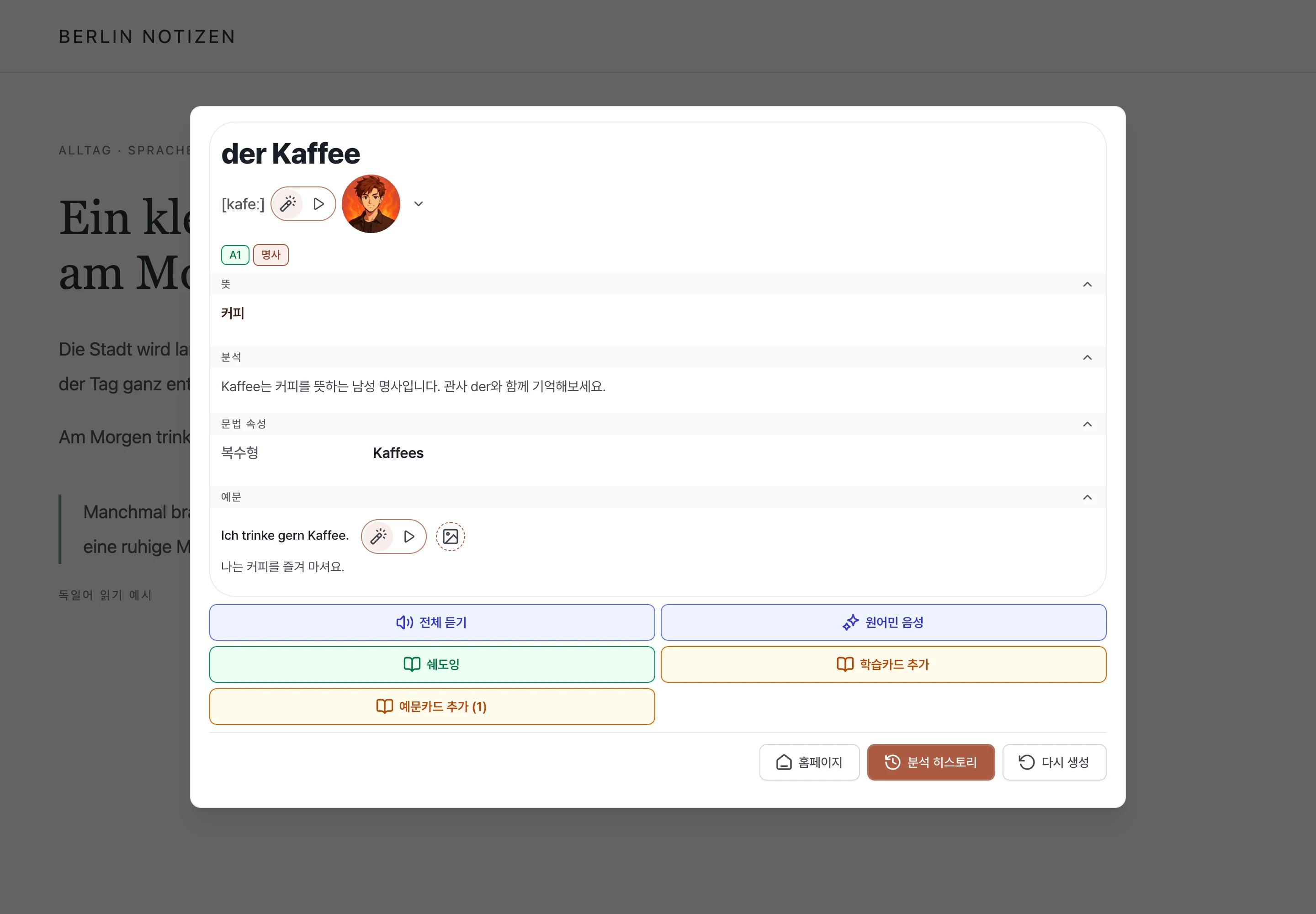
Select “Analyze” to explore meanings, grammar, and examples.
Save useful results as cards and practise them again.
02 · INSTALL AND GET READY
Install Lingoban from the Chrome Web Store. Pin the extension icon to your toolbar to easily check your account and open “Manage decks and cards” or settings.
Add Lingoban from its Chrome Web Store page and check the permissions shown.
Sign in to your Lingoban account, then open the extension and check your account status. Analysis requires sign-in.
Check your learning language and your language in settings. Enable German as a learning language and turn on webpage analysis.
03 · SELECT AND ANALYZE
Select a word or sentence with your mouse to show the analysis button. Select only what you need, then run the analysis. You can also press Alt + Shift + A after selecting text.
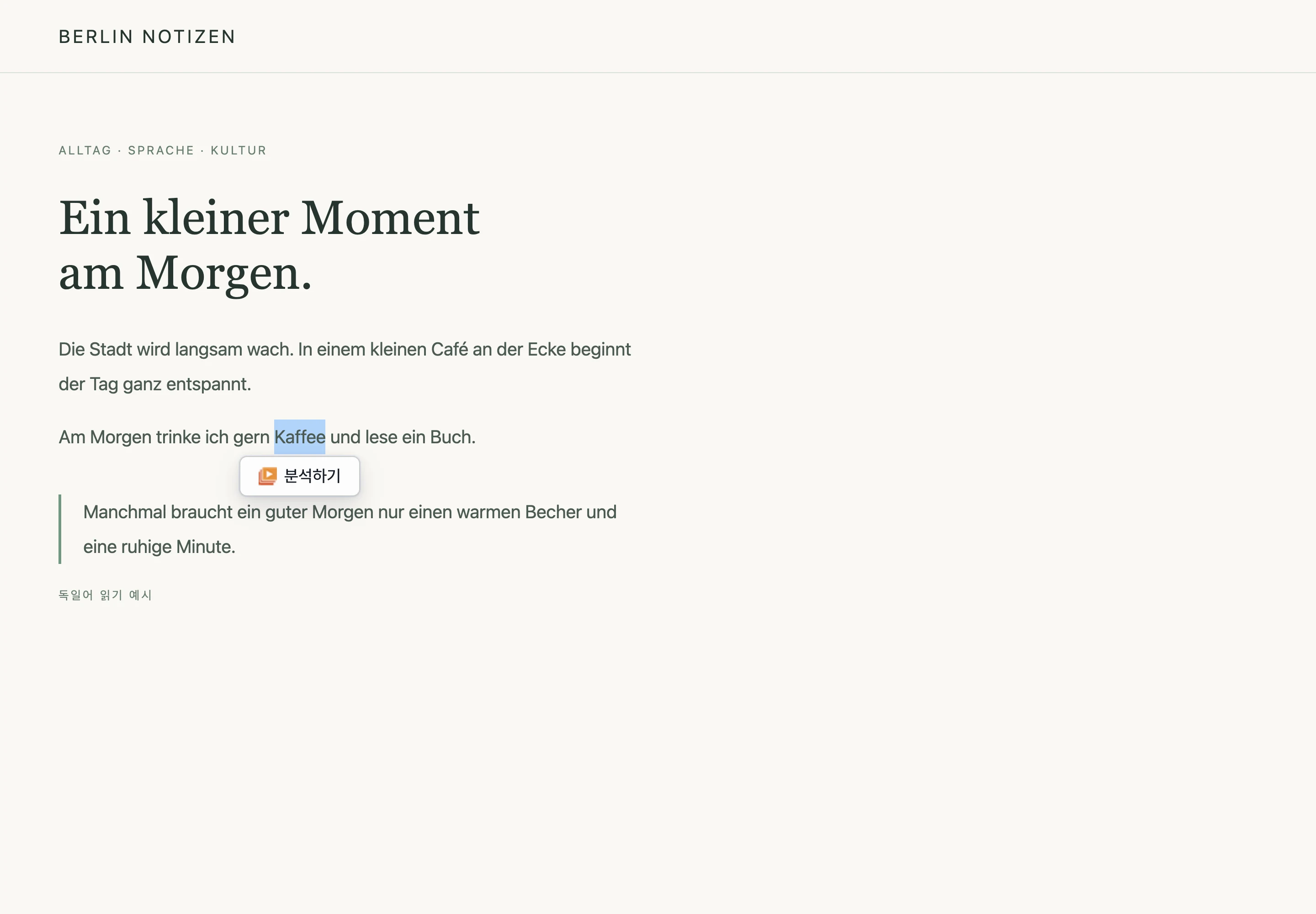
Try one word or a short sentence first. Select exactly the part you want to analyze.
Select the text, then choose “Analyze.” If you’re not signed in, follow the sign-in instructions first.
Check sign-in, whether analysis is enabled, and site exceptions. The shortcut does not work in input fields or editing areas.
04 · ANALYSIS CARDS ON THE PAGE
Open an analysis card over the webpage to read meanings, grammar, and examples. Words and sentences show different details, so start with the sections you need.
Check the article, meanings, part of speech, grammar details, and examples. The available sections depend on your input.
Read its meaning and structure, then check any corrections or natural phrasing provided.
Close the panel after checking the analysis and continue reading. AI explanations can be wrong, so check them against the context.
05 · AUDIO AND LEARNING IMAGES
Listen to the audio available on an analysis card and practise repeatedly. You can also generate images or native audio when needed and use them to learn the expression.
Play an expression to hear it, then keep practising. Listen and repeat it aloud.
Check the expression and generation options. Use the picture as a cue for an example or a word’s meaning.
Choose the target text and voice. Check the required AI credits before generating. Availability may depend on your account status.
06 · SAVE AND RETURN
Save useful analysis results to a deck, a collection of learning cards. Open Lingoban’s web library through “Manage decks and cards” in the extension popup, then choose a saved deck to keep learning.
Choose the results you want to learn again and save them to a deck. Build learning material from expressions you find while reading.
Find analyses you have viewed before in your history.
Open the web library through “Manage decks and cards” and continue shadowing or FSRS review in a saved deck. Reading or playing audio in the extension panel alone does not complete a review rating.
07 · WHERE IT WORKS AND SETTINGS
Toggle the extension for the current site in the popup. In settings, manage webpage analysis for all sites and your site exceptions.
Use “Enable webpage analysis” in settings to manage the feature.
Turn it off for the current site or manage the site exceptions list in settings.
Use it on supported ordinary webpages. Features may be limited on browser pages and some sign-in or payment pages.
08 · START WITH TODAY’S READING
Select a short German expression. Start a learning flow of understanding, saving, and recalling right from the text you’re reading.
Add to Chrome →Add to Chrome → sign in → set your languages → select text → analyze
Read the analysis card, shadowing, and review guides for detailed instructions on each feature.
Explore analysis cards →
Explore shadowing →
Explore review →